Video is becoming more and more important, especially on social media. Many of you participated in our “Virtual Spring Trade Show” at www.giftshowspecials.com. If you didn’t participate and haven’t seen it, you should take a look.
Since Gary Ivey used to do video production for a living, he thought he would do a short video (9 min.) about basic Video Production Principles. We hope it can help you to use this tool to promote your products.
The rules concerning email blast ad design have changed drastically. Watch the short (5 min.) video to see how you should approach email blast design today. (You can also see examples of email design here.)
Show Transcript
00:00:02:29 - 00:00:24:29
Hi, this is Gary Ivey from Omega Net. I wanted to take just a few minutes to do a short video about email blasts and how to design them. The rules of spam filters are always changing, so we have to change how we do email blasts. We at Omega Net used to tell you to create your email ad like you were doing a magazine ad, but that's changed big time.

00:00:25:01 - 00:00:49:16
If you send one big image in an email, most spam filters will look at it and say, well, that's obviously an ad and your intended recipient will never see it. That doesn't mean you can't have pictures, but you need to have readable copy text. Basically, the more your email ad is like a personal email that you would send to a friend or coworker, the more likely it will survive the spam filters and get to your recipients.

00:00:49:18 - 00:01:15:20
Today, it's better to have mostly text in your email blast and have a link to your website or a landing page that has all the beautiful photos and fancy fonts you want them to see. Here's a sample layout of a good email ad today. The optimum width of an email ad is 600 pixels. 60% of people view their email on their smartphone, some of which are less than 600 pixels wide.

00:01:15:22 - 00:01:38:00
I will sometimes go up to 700 pixels, but never more. I know that's not very wide, but you don't need a lot of space because you should only be communicating one thing in your email. Add what you want them to do. That may just be to click on a link to go to a landing page or your website login page, but you shouldn't throw the kitchen sink at them in your ad.

00:01:38:02 - 00:01:58:10
People are busy, and the more you try to throw at them, the less likely they are to engage at all. You can have your logo at the top for your first image. It can be linked to your website or a landing page. Below that, you can put your tagline or go right to your headline, which should grab attention and help communicate your offer.

00:01:58:12 - 00:02:22:03
That one thing you are communicating. Then have a beauty shot of your product or something that communicates the need your offer will serve. It can also link to your website or landing page. After that, you could put a paragraph, but a bullet list is better because it can be absorbed more quickly. People are busy and the quicker you can communicate what you want them to know and do, the better.

00:02:22:05 - 00:02:49:08
This should be text, not an image. Also, you can't have HTML text over a background image because most email clients don't display background images. You can have a background color because that can be done in HTML code. And the email clients will display that. What we've talked about so far should be above the fold. That is, they don't have to scroll down to see it because a lot of people won't scroll down at all.

00:02:49:10 - 00:03:10:14
It's very important to include a clear call to action or CTA, like a button that links to your website or your landing page. After that, you can put another photo or two or a photo in a paragraph. But you have to realize many people won't get that far. Then add your contact info for people who want to reach you directly.

00:03:10:16 - 00:03:29:06
I know you designers aren't going to like this, because you want to show your design chops and how beautiful your products can look, but the purpose of the email ad is to get them to click to go to your website where they can see your beautiful slideshow and product images, or to a landing page featuring the specific offer in the email ad.

00:03:29:07 - 00:03:39:18
That's where you can show what a great designer you are. Well, that's all for now. Just wanted to talk about the changes that have taken place in how we need to create email ads.
For a website to be HTTPS, a Secure Socket Layer (SSL) certificate must be purchased and installed on the server where the domain is hosted.
How We Do It Now
Currently we use a shared “wildcard” (*.cameoez.com) SSL certificate to make selected pages HTTPS, such as Login, Registration, Update Account, Checkout, etc. where customers input sensitive information. These pages are already SSL secure (displayed as HTTPS and for which Chrome displays “Secure” in the address bar). As a result of this shared certificate, until now you have not needed to purchase your own SSL certificate each year. Ordinary product and information pages are not SSL secure, but are displayed as HTTP.
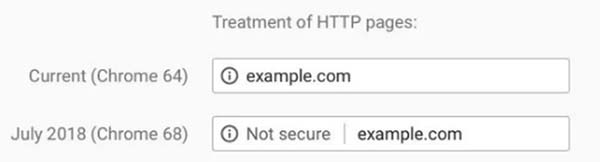
Until now, Google Chrome has simply displayed HTTP pages without the “Secure” notification in the address bar, but beginning in July, 2018, Chrome will display a “Not Secure” warning in the address bar of all HTTP pages, rather than just omitting “Secure.” The warning in Chrome will likely be alarming to your customers who use that browser.
Our current server software version does not allow SSL certificates on multiple domain names on one IP address, but we have formulated a plan that will satisfy Google Chrome.
What Does This Mean for You?
Whether your site must have its own SSL certificate depends on your “website type.” You can identify your website type in Admin Console > Account Setup > Account Type. Your Website Type will be “Attached Site,” “Redirected Website,” or “Complete Site.” If yours is an “Attached Site” site, number 2 below applies to you. If your site is either “Redirected Website” or “Complete Website”, number 3 below applies to you. We may also contact you with specific information for your situation.
“Redirected Website” or “Complete Website”: If your site’s domain name (yourname.com) goes directly to your wholesale website, then you will be required to pay for an SSL certificate for your domain name. OmegaNet will purchase and install this for you and bill you or charge your credit card on file. We do have to install the certificate. Installation includes:
generating a “Certficate Signing Request” (CSR) which can only be generated on our server.
properly installing the purchased certificate and keys in the proper location on the server.
How Much Will the Certificate Cost?
OmegaNet will charge $140 (including installation) for a certificate, which is good for one year. Our vendor is considered the best protection and the best value according to a “Best Five” list for SSL security.
Is this an annual expense?
Yes. We have been able to save you this expense until now with our shared certificate, but Google has made it impossible to continue this way. You will be billed or charged again one year from the date that we set up your site with your own certificate. The price may be different, depending on what we are able to negotiate with our vendor.
Can I buy my own certificate?
No, we aren’t allowing this, simply because, with hundreds of websites, there is too much for us to keep track of, doing all these sites at one time, plus we are getting a discount because we are buying so many and if you bought your own, we would still have to install it, for which we would charge you, so you wouldn’t save anything.
NOTE: SSL Certificates are not transferrable from one server to another.
Is this Mandatory?
Yes. You don’t want Google Chrome users seeing the scary warning. That will hurt your sales.
More Than One Domain Name?
What if you have more than one domain name associated with your site? Will you need to purchase an SSL certificate for each of them? Technically you would, but if your domain names are just variations of the same name, we can set your site to convert to what you consider your “main” domain name when customers type in one of your secondary domain names so you only have to pay for one certificate.
When is the Deadline?
We have a lot of work to do to be ready, but we will begin purchasing certificates and applying them to domains as soon as we can with a target to have everything complete by mid June.
Questions?
Contact Gary Ivey (gary@omeganetinc.net or 770-482-3012 ext. 104) with questions.
Last year we had to stop using FTP (File Transfer Protocol) to upload files in order to be PCI Compliant for credit card security (see previous bulletin).
At that time we installed a new, better File Manager for you to use in addition to the image uploaders in the Admin Console. However, the File Manager still left a lot to be desired, so we took the extra step of setting up a separate server to host images only. Now when you view your images in the File Manager you are actually looking at them on a different server. Having images stored remotely will help with page-load speeds, but the biggest advantage is that you can now FTP again.
Here’s how: Use ftp://images2.cameoez.com as the host name and use your Admin Console username and password for the FTP username and password when prompted.
You can use an FTP client software program or Windows Explorer to do this. Click Here for Instructions.
NOTE: The FTP server is only for files located in the “images” folder and its subfolders, such as the “import” folder where product images need to be uploaded.
Dear OmegaNet/CAMEO EZ Clients: As you may remember, not long ago we moved the sites on one of our servers to “the cloud” to allow us to make changes to comply with PCI standards and to give us better speed and uptime. (Bulletin #110711)
However, after multiple episodes of under performance in the data center to which we moved our server, they admitted that they have a connectivity issue there, but have not found the root cause. So, with no satisfactory solution forthcoming from them, over the weekend we realized we had to solve the problem immediately and move to a workable situation.
So, during the night tonight (April 30) we will be moving all affected sites to a new server that will be much better.
Today it is VERY IMPORTANT that those of you with wholesale sites DO NOT Process Images, since this drags down the performance of the server because of the nature of the problem at the current data center.
Two pieces of good news: we will be able to keep our IP address, so you will not be required to make any changes, AND with this move we are also arranging to handle images separately so everyone will be able to use FTP again. These changes should restore the expected uptime and page load speed to optimal levels.
Sorry for the inconvenience. We are committed to improving our service to you.
At OmegaNet, we endeavor to ensure that all credit card data is secure by providing 128-bit SSL encryption for all transactions and maintaining 24-hour monitoring on our servers to alert us to any attempts to enter our servers by unauthorized persons. Additionally, credit card information is stored encrypted then deleted after 30 days.
In order to be completely compliant with the PCI SSC Data Security standard, we must take an additional step of turning off the File Transfer Protocol server (FTP) and closing port 21. We will do this on the evening of Friday, July 15.
For updated information on using FTP to upload images, see Bulletin #120605.
We think you will really like the features of the new file manager if you have been using Windows Explorer to do your uploads. We apologize for any inconvenience but we really have no choice in the matter.
OmegaNet Inc. Web Site Clients: URGENT Notification
They say “The Only Thing Constant Is Change”. So it seems to be with web hosting. There are many operating system and software upgrades that we must make in order to meet certain compliance requirements, but which cannot be made on our current server where your web site is hosted. Because of this, we must move your site to a new server.
This will necessitate that we take down the current server and activate the new one over a six-hour period on the evening of this Sunday, May 22. The server (and all web sites) will be down beginning at 9:00 pmEastern time until 3:00 am. During this time we will be making a final copy of all the most recent files and data, so that nothing is lost. I would advise you not to make any uploads or updates to your web site on Sunday, May 22.
If OmegaNet has your domain name, full website and email, you will not need to make any changes. The server change will be invisible to you.
However, some of you may need to make a change if you are using the current server IP address either in an FTP client or if you are redirecting from an official host to our server. I will try to notify each of the latter directly so you can be prepared. The new IP address is 208.43.126.162.
We have installed a new type of Large Image presentation for wholesale sites that allows people to see large product images without opening a new window and without leaving the thumbnail page. Since many people turn popups off in their browsers, this will avoid that problem. Also this method is more current.
Below is an image of a screenshot of the way the new Large Image should look. If it’s not that way it is on your site, you likely have a custom thumbnail page so we will need to make a couple of changes in your custom template. Let us know and we will make the change.
We have added several enhancements to “Browse Images” under the Image Manager of the Admin Console.
Each page still displays 10 pictures at a time but the enhanced navigation allows you to find a specific picture in the dropdown list and go directly to that page.
Secondly, if you click on any picture you see the full size version of it.
You can also change the name of the picture or delete it by clicking the icons underneath the image.
New Accomodation for Using Group Layout for Selected Categories in Vendor Sites
While the preferred way to display product pictures is a thumbnail, featuring one SKU per picture, often catalog photography is shot with a group of items in one image and there’s no way to break them apart. In that case you need to be able to display multiple SKUs in a list under a single “Group” image. At first we could only do this for an entire website, then we created a workaround whereby a custom template could be installed and you could put the word “Group” in the Category Description to make a category display.
The problem with this workaround was that you could no longer utilize the Category descriptions.
Now we have created a better way of handling this needed feature so that you can easily select a thumbnail or a group image for each of your Categories or Subcategories. Here’s how.
Under the “Product Categories” button in the Admin Console, click “View All” and then click “Edit” to the right of the Category you want to have display a Group image. There you will see “Group Layout:” and a checkbox. It defaults to unchecked which means the Category will display the thumbnail layout. If you check “Group Layout”, the contents of that category will be displayed as one large picture with multiple SKUs underneath, assuming you have multiple SKUs with the same image name in column U of your spreadsheet.